What you'll learn 👉
INTRO
Moving your crypto funds from an exchange to a wallet should not be complicated. Most of the time, you have to send the coins from your exchange to the address of your wallet, and the whole process from your end should be done within 10 minutes.
The Phantom Wallet is a digital cryptocurrency wallet where you can send, store, and receive Solana blockchain coins. The native coin of the wallet is SOL. In this article, we will explain how to move SOL from the exchange (we will use Coinbase as an example) to your Phantom wallet. Both of these platforms (Coinbase and Phantom Wallet) are super easy to use, so we should go through this quickly. Let’s jump into details.
Btw. Phantom wallet works great with hardware wallets like Ledger Nano X, Nano S Plus or Trezor T wallet.
1. Go to Coinbase mobile application
Coinbase can be used on Windows, Mac, iOS, and Android, but for the purpose of this article, we will explain the procedure using the screenshots from Coinbase mobile application.
Log in to your account (create it and verify it if you have not already) on your Coinbase application. You can download the app on Google and Play Store.
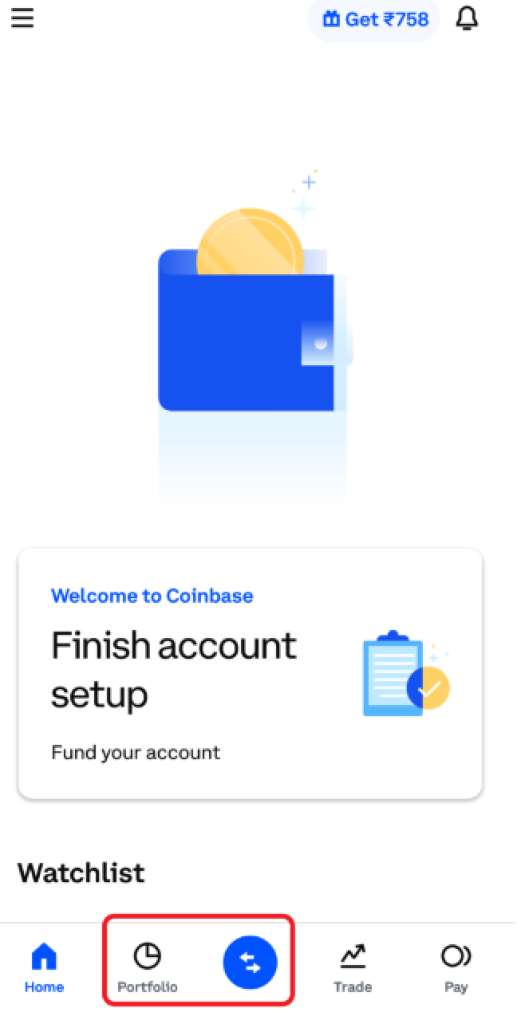
2. Tap Portfolio or 
The Coinbase dashboard will be the first thing you see once you log in to your account. Click on the “Portfolio” tab at the bottom of the screen or on the  icon next to it. Have a look at the screenshot below.
3. Find crypto (SOL) you want to transfer
Once you tap on the “Portfolio” button, you will see all of the portfolios that you store on your Coinbase account. Find SOL and click on the “send” button.
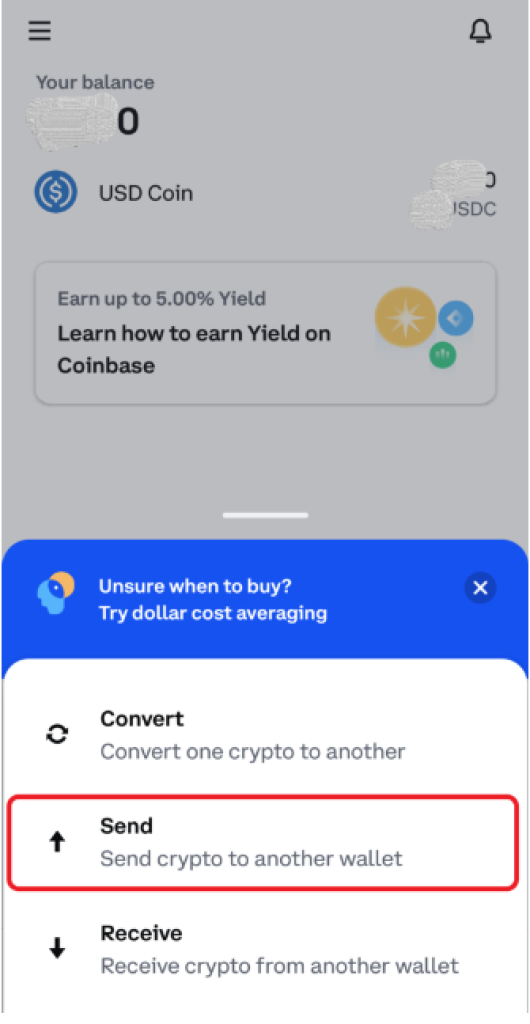
On the other hand, if you clicked on the icon, you will see 3 options; “convert”, “send”, and “receive”. Click on “send”, as shown on the screenshot below.
4. Enter the amount
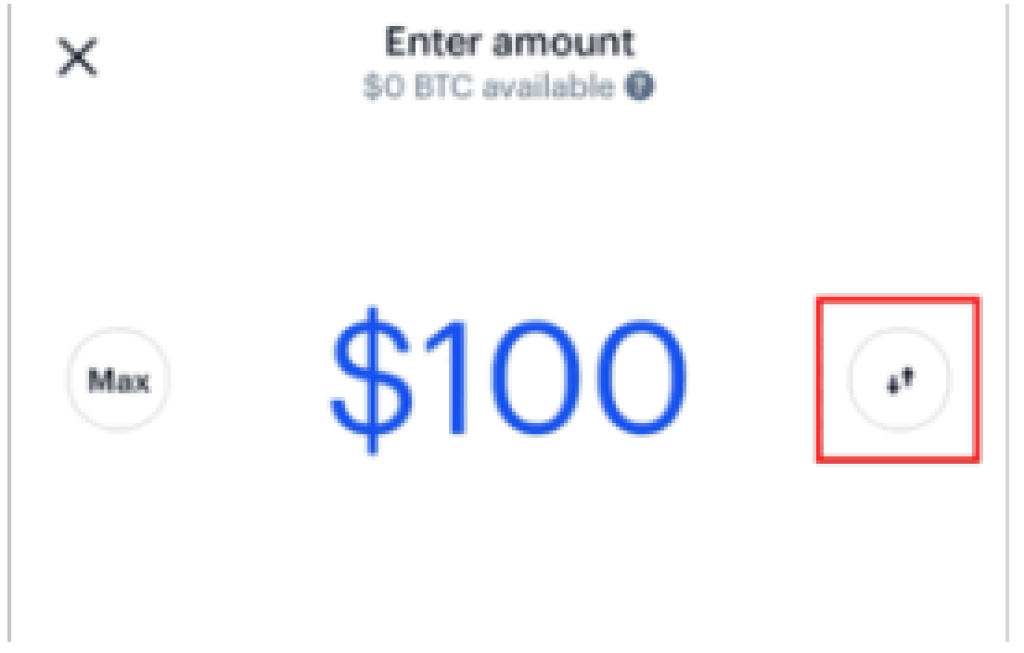
Once you choose SOL, you will see the “amount” field. Enter the amount you would like to transfer in USD. Of course, you can tap on the “two arrows” button if you want to check the amount in terms of crypto.
5. Paste your Phantom wallet address
Now we have to provide the exchange (Coinbase in this case) with the address where coins should be sent. In order to find the address, we need your Phantom wallet.
The steps should be done as follows:
- Open the Phantom Wallet extension
- Type your password and then click on the “Unlock” button
- Find the “Deposit” section
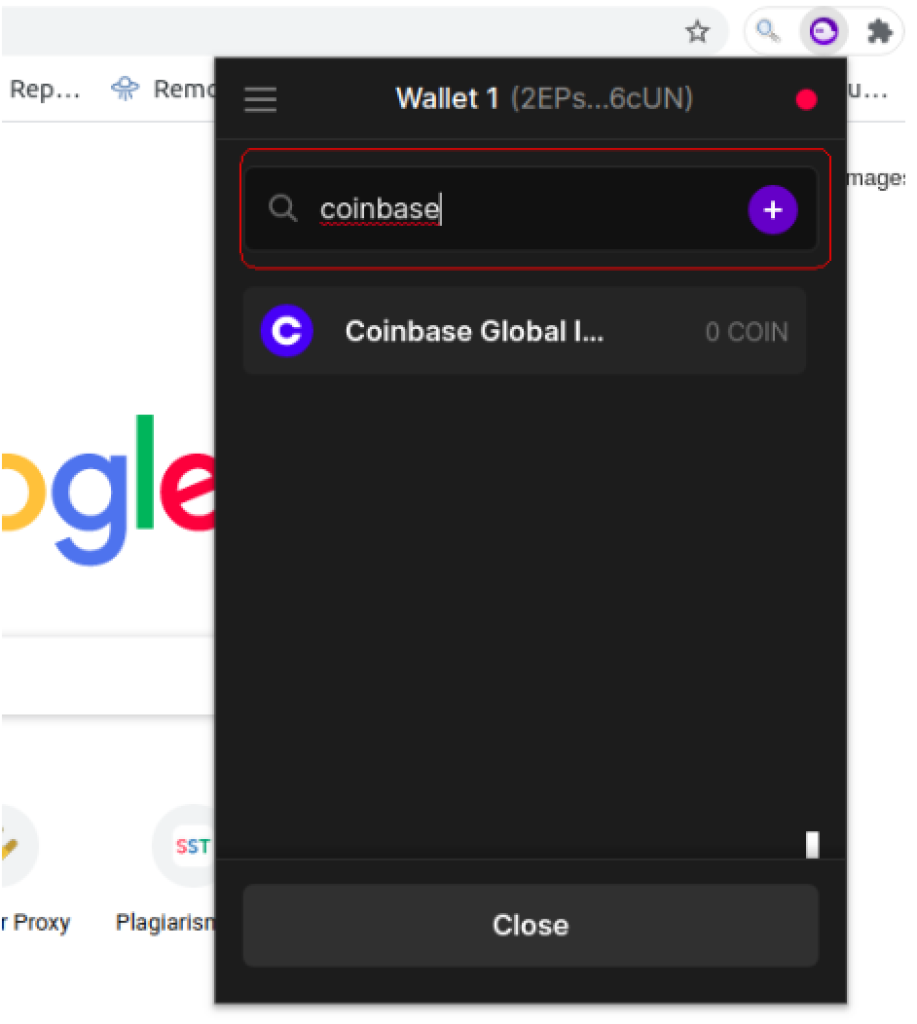
- Type “Coinbase” in the search box.
- Once the Coinbase Global exchange appears (as shown on the screenshot below), click on it.
Once you click on the Coinbase exchange, a new pop-up with a QR code and your wallet address will appear. Click on the “copy” button next to the address.
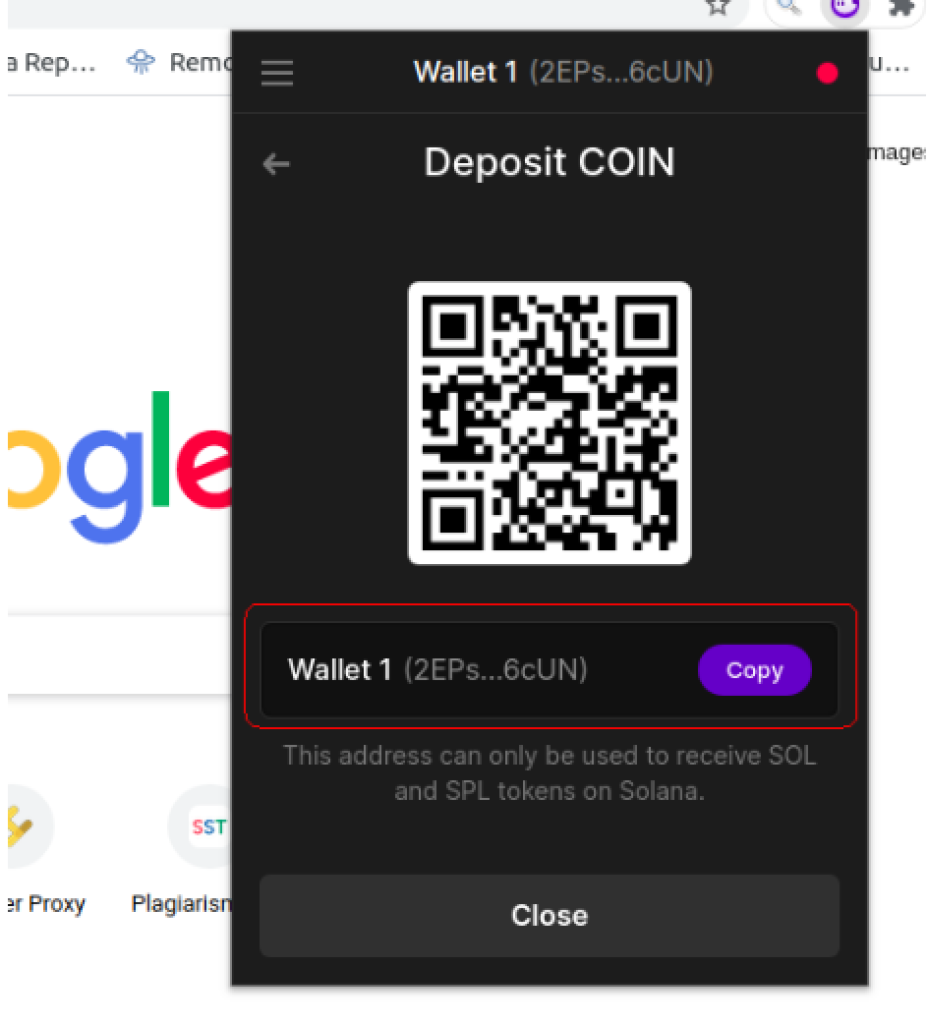
Once you copy the address, let’s now go back to your Coinbase application.
6. Tap Confirm/ Preview
You can leave the note field empty since that’s optional to fill out. Once you paste your wallet address, click on the “confirm / preview” button. The majority of today’s exchanges require verifying the transaction before confirming it, so you will need to enter the verification code you will receive on your mobile device (or email, depending on how you set the verification code to work).
Once you confirm it, the Coinbase application will show you send notification pop-up. Now, let’s go back to Phantom Wallet.
7. Check your Phantom wallet
The final step is to check your Phantom wallet and see if the transaction went through and if SOL is available on your balance. If yes, that’s it – you have now successfully moved your coins from an exchange (Coinbase in our example) to your Phantom wallet.